Tuesday, 18 October 2016

CHAPTER 10

MANAGING DATABASES

Database

  • Collection of data organized in a manner that allows access, retrieval, and use of that data.
Data
  • Collection of unprocessed item.
Examples
  1. Text
  2. Numbers
  3. Images
  4. Audio
  5. Video
Information
  • Processed data
  • Documents
  • Audio
  • Video
  • Images
Valuable Information should have the following;
  • Accurate
  • Verifiable
  • Timely
  • Organized  
  • Accessible
  • USeful
  • Cost effective 

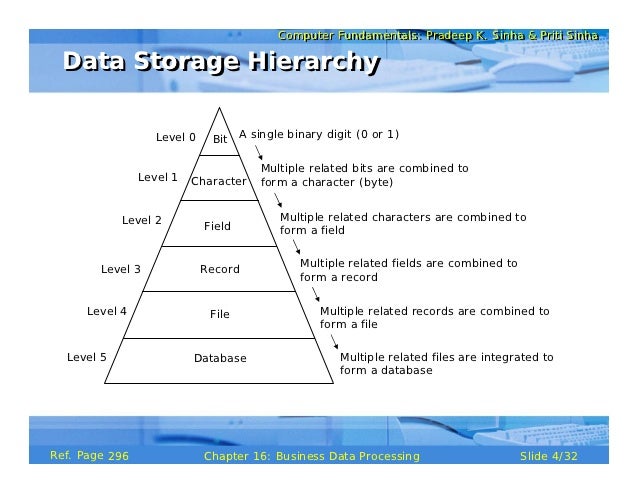
Hierarchy of Data


  • Bit
  • Character
  • Field
  • Record
  • File
  • Database
Image result for hierarchy of data


Database Design Guideline

Database design is the process of producing a detailed data model of database. This data model contains all the needed logical and physical design choices and physical storage parameters needed to generate a design in a data definition language, which can then be used to create a database. A fully attributed data model contains detailed attributes for each entity.
  • Determine the purpose of the database - This helps prepare for the remaining steps.
  • Find and organize the information required - Gather all of the types of information to record in the database, such as product name and order number.
  • Divide the information into tables - Divide information items into major entities or subjects, such as Products or Orders. Each subject then becomes a table.
  • Turn information items into columns - Decide what information needs to be stored in each table. Each item becomes a field, and is displayed as a column in the table. For example, an Employees table might include fields such as Last Name and Hire Date.
  • Specify primary keys - Choose each table’s primary key. The primary key is a column, or a set of columns, that is used to uniquely identify each row. An example might be Product ID or Order ID.
  • Set up the table relationships - Look at each table and decide how the data in one table is related to the data in other tables. Add fields to tables or create new tables to clarify the relationships, as necessary.
  • Refine the design - Analyze the design for errors. Create tables and add a few records of sample data. Check if results come from the tables as expected. Make adjustments to the design, as needed.
  • Apply the normalization rules - Apply the data normalization rules to see if tables are structured correctly. Make adjustments to the tables.
  •  

File maintanance

  • Adding records
  • Modifying records
  • Deleting records

Validation
  • Alphabetic/Numeric check
  • Range check
  • Consistency check
  • Completeness check
  • Check digit
  • Other checks


Data Management System (DBMS)
  • Query language
  • Query by example
  • Form
  • Report generator

Databases on the Web allows you to:
  • Shop for products
  • Buy or sell stocks
  • Search for a job
  • Make airline reservation
  • Register for college
  • Check semesters grades


CHAPTER 9

NETWORKS AND COMMUNICATIONS

Communication

Computer communications describes a process in which two or more computers or devices transfer data, instructions, and information.

Uses Computer communication
  • Text messaging (sms)
  • picture messaging
  • video messaging
  • Gps
Image result for how gps works diagram
  • groupware
  • voicemail


Networks

A network is a collection of computers and devices connected together via communications devices and transmission media

Advantages of a Network
  • Facilitating communication
  • sharing hardware
  • sharing data and information
  • sharing software
  • transferring funds
Types of networks

  • Local Area Network (LAN)
  • Wireless LAN (WLAN)
  • Metropolitan Area Network (MAN)
  • Wide Area Network(WAN)
  • P2P
Image result for p2p


Network Topology

Network topology is the arrangement of the various elements (links, nodes, etc.) of a computer network. Essentially, it is the topological structure of a networkand may be depicted physically or logically.


Image result for network topology

Networks
  • Ethernet
  • Token ring
  • TCP/IP
  • Wifi
  • Bluetooth
  • UWB
  • IrDA
  • RFID
  • WiMAX
  • WAP


Types of wired home networks
  • Ethernet
  • Powereline Cable
  • Phoneline


Types of Physical Transmission Media
  • Coaxial cable
  • Twisted pair
  • Fibre optics

Image result for coaxial fibre optic twisted pair


Types of Wireless Transmission Media
  • Infrared
  • Broadcast Radio
  • Cellular Radio
  • Microwave Radio
  • Communication Satelite


Monday, 17 October 2016

CHAPTER 8

TYPES of  STORAGE

Alternatively referred to as digital storage, storage, storage media, or storage medium, a storage device is any hardware capable of holding information either temporarily or permanently. 

There are two types of storage devices used with computers: a primary storage device, such as RAM, and a secondary storage device, like a hard drive. Secondary storage can be removable, internal, or external storage.

Examples of computer storage

Magnetic storage devices
Today, magnetic storage is one of the most common types of storage used with computers and is the technology that many computer hard drives use.
  • Floppy diskette
  • Hard drive
  • Magnetic strip
  • SuperDisk
  • Tape cassette
  • Zip diskette


Optical storage devices
Another common storage is optical storage, which uses lasers and lights as its method of reading and writing data.
  • Blu-ray disc
  • CD-ROM disc
  • CD-R and CD-RW disc
  • DVD-R, DVD+R, DVD-RW, and DVD+RW disc


Flash memory devices
Flash memory has started to replace magnetic media as it becomes cheaper as it is the more efficient and reliable solution.
  • Jump drive or flash drive
  • Memory card
  • Memory stick
  • SSD


Online and cloud
Storing data online and in cloud storage is becoming popular as people need to access their data from more than one device.
  • Cloud storage
  • Network media

CHAPTER 7

Understanding of Output
Output is data that has been processed to an useful information.


An output device is any type of hardware component that conveys information to one or more people.


  • display devices
  • printers
  • speaker and earphones
  • projectors
  • interactive whiteboards
  • tactile output
  • force feedback game controllers
Display devices- visually conveys text, graphics, and video information
  • LCD monitor
Printer- A printer produces text and graphics on a physical medium
  • Printed information is called a hard copy, or printout
  • Landscape or portrait orientation.
Non-impact printers- forms characters and graphics on a piece of paper without actually                                         striking the paper
  • ink jet printers
  • photo printers
  • laser printers
  • thermal printers
  • mobile printers
  • plotters
  • label and postage printers
  • large format printers
Ink-Jet Printers- An ink-jet printer forms characters and graphics by spraying tiny drops of liquid ink onto a piece of paper
  • Color or black-and-white
  • Printers with a higher dpi (dots per inch) produce a higher quality output

Photo Printer - produces photo lab quality pictures
  • Most use ink-jet technology
  • PictBridge allows you to print photos directly from a digital camera
  • Print from a memory card and preview photos on a built-in LCD screen    

           Laser printer
  •         high speed
  •         colour
  •         high quality
  •         black and white
          Multifunction peripheral -(MFP) is a single device that prints, scans, copies, and in some                                               cases, faxes.
            
          Thermal printer -generates images by pushing electrically heated pins against the heat-                                    sensitive paper
  •        Thermal wax printer
  •        Dye sublimation printer
         Mobile printer is a small, lightweight, battery-powered printer that allows a mobile user to                             print from a notebook computer, smart phone, or other mobile device

        Label printer is a small printer that prints on adhesive-type material

Postage printer prints postage stamp
  •        Postage also can be printed on other types of printers.

Plotters- are used to produce high-quality drawings

Large format printers- create photo-realistic quality color prints on a larger scale

Speakers, Headphones, and Earbuds
An audio output device produces music, speech, or other sounds

Speakers
              • Generate higher-quality sounds for playing games
              • Interact with multimedia presentations
              • Listen to music
              • View movies
Headphones are speakers that cover or are placed outside of the ear

Earbuds (also called earphones) rest inside the ear canal.

CHAPTER 6

UNDERSTANDING INPUT
Input is any data and instructions entered into the memory of a computer.


Keyboard
A keyboard is an input device that contains keys users press to enter data and instructions into a computer.
The insertion point, also known as the cursor, is a symbol on the screen that indicates where the next character you type will appear.
Wired keyboard
  •        USB
Wireless Keyboard
  •       Bluetooth
  •        IrDa
An ergonomic keyboard has a design that reduces the chance of wrist and hand injuries.

Pointing Devices

Mouse
A mouse is a pointing device that fits under the palm of your hand comfortably.
Most widely used pointing device on desktop computers.

Trackball
A trackball is a stationary pointing device with a ball on its top or side.

Touchpad
A touchpad is a small, flat, rectangular pointing device that is sensitive to pressure and
motion.

Pointing stick
A pointing stick is a pressure-sensitive pointing device shaped like a pencil eraser that is
positioned between keys on a keyboard.

Game controller
  •        Gamepads
  •        Dancepads
  •        Light guns
  •        Joysticks and Wheels
  •        Motion sensing controllers
Digital camera
A digital camera is a mobile device that allows users to take pictures and store them
digitally.
  •        studio camera
  •        field camera
  •        point and shoot camera
Audio input
  •        speech
  •        music
  •        sound effect
Video input
Video input is the process of capturing full-motion images and storing them on a computer’s
storage medium.

Webcam
  •        capture video and still images
  •        send email with video attachments
  •         make video calls
  •         broadcast live in internet
Scanners and Reading device
  •        flat-bed
  •        pen or handheld
  •        drum
  •        sheet-fed
RFID- (radio frequency identification) uses radio signals to communicate with a tag placed in or attached to an object.

Magnetic stripe card readers

  •        credit card
  •        entertainment card
  •        bank cards 
  •        other similar card
    

MICR- (magnetic ink character recognition) devices read text printed with magnetized
            ink.

Data collection device
  •        restaurants
  •        grocery store
  •        factories
  •        warehouses
  •        hypermarket
Terminals- A terminal is a computer that allows users to send data to and/or receive                        information from a host computer.

CHAPTER 5

TYPES of  UTILITY PROGRAMS and OPERATING SYSTEMS

System Software -consists of the programs that control or maintain the operations of the                                                      computer and its devices


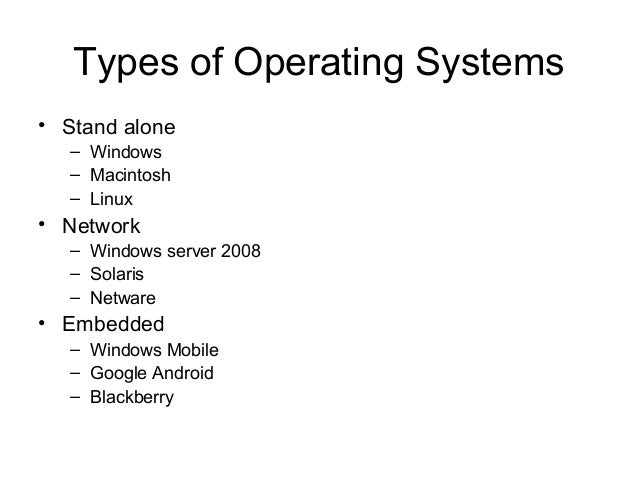
Operating system -An operating system (OS) is a set of programs containing instructions that                                                work together to coordinate all the activities among computer hardware                                                   resources

Booting
  • Cold Boot -Turning on a computer that has been powered off completely.
  • Warm Boot - Using the operating system to restart a computer.

Image result for types of operating system
UTILITY PROGRAM
A utility program is a type of system software that allows a user to perform maintenance-type tasks.
A file manager is a utility that performs functions related to file management
–Displaying a list of files
–Organizing files in folders
–Copying, renaming, deleting, moving, and sorting files and folders
–Creating shortcuts

Image result for utility programs
VIRUS- A virus describes a potentially damaging computer program that affects a                               computer negatively

  • Worm- A worm copies itself repeatedly in memory or over a network.

  • Trojan Horse-•A Trojan horse hides within or looks like a legitimate program.
  • An antivirus program protects a computer against viruses.


CHAPTER 4

SYSTEM UNIT COMPONENTS

System Unit


  •  The computer system unit is the enclosure for all the other main interior components of a computer. It is also called the computer case, computer chassis, or computer tower.

Components of system unit
  • Drive bays
  • power supply 
  • sound card
  • video card
  • processor
  • memory

Motherboard

The motherboard is the main circuit board of the system unit.

Processor

The processor, also called the central processing unit (CPU), interprets and carries out the basic instructions that operate a computer
  • multi core
  • dual core
  • quad core
Image result for processor basic operation
Data Representation
  • Analog- signals that are continuous and vary in strength and quality.
  • Digital- signals thatare in one of two states: on or off

Memory

Consists of electronic components that store instructions waiting to be executed by the processor, data needed by those instructions, and the results of processing the data.
  • Volatile memory
  • Non-volatile memory
Basic types of RAM chips
  • Dynamic RAM (DRAM)
  • Static RAM (SRAM)
  • Magnetoresistive RAM (MRAM)

Ports and Connectors
  • A port is the point at which a peripheral attaches to or communicates with a system unit (sometimes referred to as a jack)
  • A connector joins a cable to a port.
  • A USB port can connect up to 127 different peripherals together with a single connector.

Buses
  • A bus allows the various devices both inside and attached to the system unit to communicate with each other
    –Data bus
    –Address bus
Example of buses
  • PCI bus
  • PC card bus
  • USB and FireWire bus
  • PCI Express bus
  • Accelerated Graphics Port


BB

BU